

Payment Link Out — Without Detail
Create a Payment Link Out where the recipient picks the asset and enters their own receiving address on the Hosted Payments Page.
Use Without Detail mode when you do not know — or do not want to specify — where the funds should go. The merchant supplies only the amount, currency, and reference. BEEM generates a link the merchant shares with the recipient, who opens the Hosted Payments Page and provides their own receiving details: the asset, the network, and their wallet address.
This is the right mode for paying someone who must tell you where they want the funds — a customer withdrawal, a marketplace seller payout, or a refund where you do not already hold the recipient's crypto address.
1. Create the payout
Via the API
The Create Payment endpoint accepts only the top-level fields. No payOutDetails object.
Request fields
| Field | Type | Required | Description |
|---|---|---|---|
merchantId | string | Yes | UUID of the wallet the payout draws from. Identical to the wallet's ID. |
amount | number | Yes | The amount to send, in the Display Currency. |
currency | string | Yes | The Display Currency code (e.g. EUR, USD). |
reference | string | Yes | A unique reference for the payout, recorded against the transaction. |
type | string | Yes | OUT for this flow. |
expiryMinutes | integer | No | Link expiry in minutes. Defaults to 1440 (24 hours). |
returnUrl | string | No | Where to send the recipient after they leave the Hosted Payments Page. |
Example request
{
  "merchantId": "00a4af9d-ad4b-42d5-bec4-b7a8c90161fe",
  "amount": 100,
  "currency": "EUR",
  "reference": "PAYOUT-5521",
  "type": "OUT",
  "expiryMinutes": 1440,
  "returnUrl": "https://merchant.example.com/payouts/complete"
}
Example response
Because the recipient has not yet chosen an asset or entered an address, the response is partially populated. The paid currency, exchange rate, network fee, and address are all determined once the recipient completes the Hosted Payments Page.
{
  "uuid": "3f8a1c92-7d4e-4b21-9e6f-2a1b8c4d5e6f",
  "merchantId": "00a4af9d-ad4b-42d5-bec4-b7a8c90161fe",
  "merchantDisplayName": "Metallica Inc",
  "dateCreated": 1704807605678,
  "expiryDate": 1704894005678,
  "reference": "PAYOUT-5521",
  "type": "OUT",
  "status": "PENDING",
  "displayCurrency": {
    "currency": "EUR",
    "amount": 100,
    "actual": 0
  },
  "walletCurrency": {
    "currency": "EUR",
    "amount": 100,
    "actual": 0
  },
  "paidCurrency": {
    "currency": null,
    "amount": 0,
    "actual": 0
  },
  "feeCurrency": {
    "currency": "EUR",
    "amount": 0.90,
    "actual": 0
  },
  "networkFeeCurrency": {
    "currency": null,
    "amount": 0,
    "actual": 0
  },
  "displayRate": null,
  "exchangeRate": null,
  "address": null,
  "returnUrl": "https://merchant.example.com/payouts/complete",
  "redirectUrl": "https://pay.hostedpaymentspage.net/payout/3f8a1c92-7d4e-4b21-9e6f-2a1b8c4d5e6f",
  "transactions": []
}
Two fields to record:
uuid— the payout identifier. Used for any subsequent API queries and matched in every webhook payload for this payout.redirectUrl— the Hosted Payments Page URL to send the recipient to.
Via the Portal
For one-off payouts created without writing code — for example, an ad-hoc withdrawal actioned by a finance team member — the Portal's Send Payment flow creates a Without Detail payout link.
- Sign in to the Account Portal.
- Go to Payment Links from the left navigation.
- Click Send Payment in the top right of the Payment Links page.
- Fill in the Send Payment form:
| Field | Description |
|---|---|
| Funding wallet | The wallet the payout draws from. The wallet's currency determines the Wallet Currency on the link. |
| Display currency | The currency the payout amount is quoted in. |
| Amount | The amount to send, in the Display Currency. |
| Payment reference | Your internal label for the payout. Click the sparkle icon to auto-generate one. |
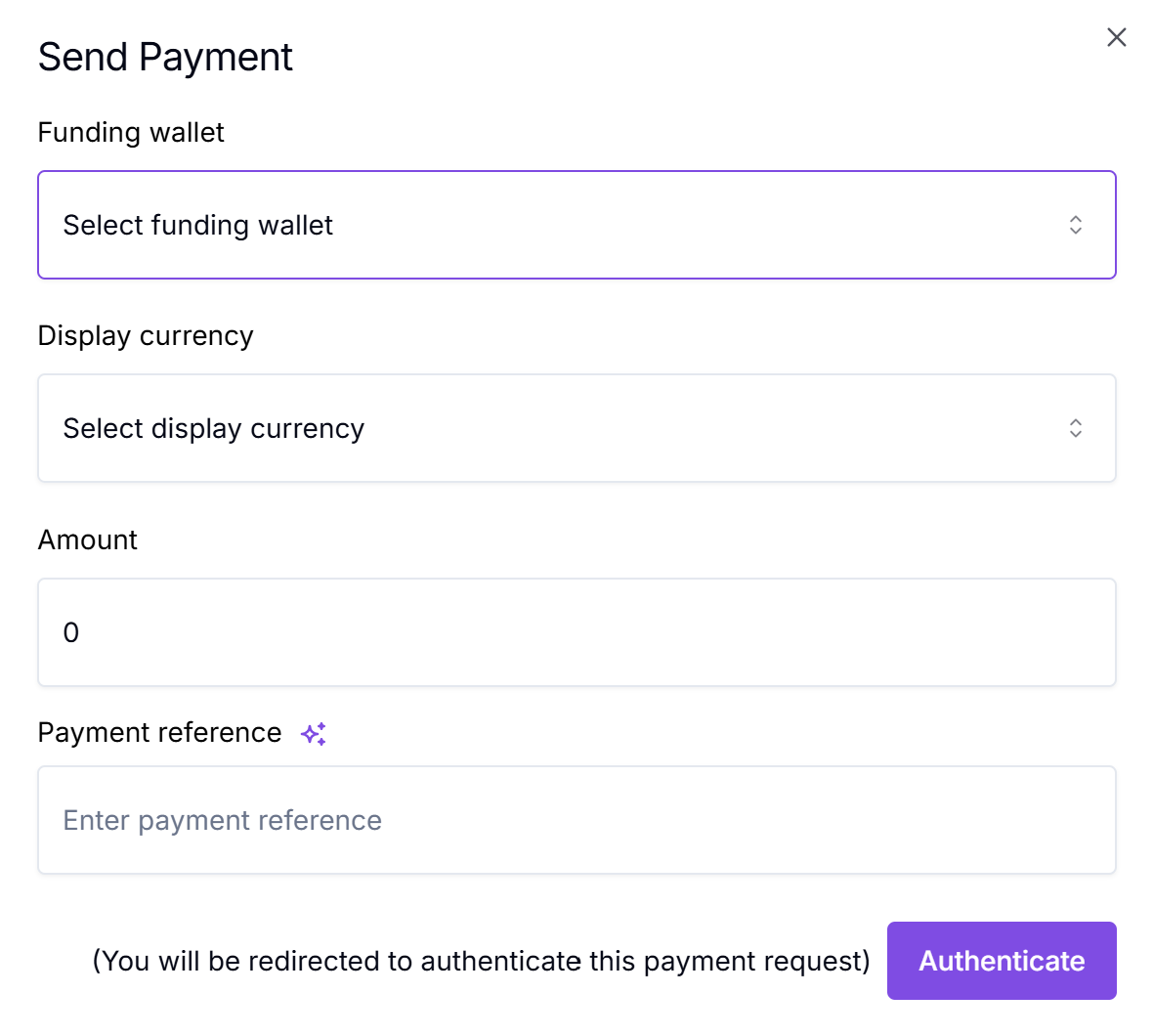
The Send Payment form. Funding wallet, display currency, amount, and reference.
- Click Authenticate.
- Copy the generated link from the confirmation dialog and share it with the recipient.
The Portal-generated link behaves identically to an API-created Without Detail payout — the recipient still completes the asset, network, and receiving address on the Hosted Payments Page.
Send Payment vs Send cryptoTwo Portal actions create outbound payments. Send Payment (on the Payment Links page) creates a Without Detail link — the recipient chooses where the funds go. Send crypto (on the Wallets page) creates a With Detail payout — you choose the destination yourself. Use Send Payment when you do not yet know the recipient's address.
2. Direct the recipient to the Hosted Payments Page
Share the redirectUrl with the recipient — by redirect, email, or however your flow delivers it. The recipient completes the payout on BEEM's Hosted Payments Page.
Screen 1: Asset selection, receiving address, and rate confirmation. The recipient picks the asset and network they want to receive, then enters their receiving address (and a destination tag, for networks like XRP that require one). BEEM validates the address — that it is correctly formatted for the chosen network and is a valid address — before allowing the recipient to continue. The recipient then reviews the quoted rate and clicks Accept.
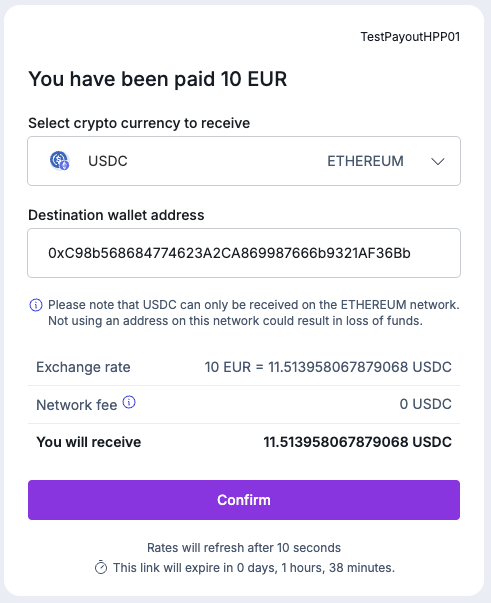
The recipient selects the asset and network and enters their receiving address.
Screen 2: Completion. Once the payout is submitted and confirmed on-chain, the recipient sees a completion screen. The payment's status moves to COMPLETE.
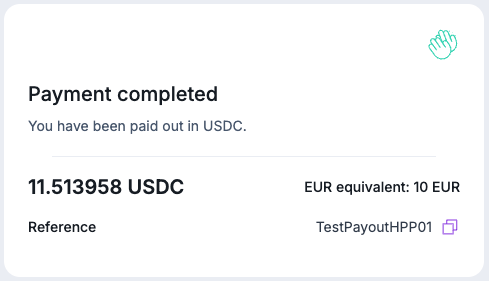
The completion screen, shown once the payout is confirmed on-chain.
When the recipient clicks Accept, the payment's status moves to PROCESSING. It stays in PROCESSING through any approval wait and the on-chain submission and confirmation period.
3. Approval (if configured)
If your account has an approval policy that applies to this payout, the payment is held after the recipient accepts and before on-chain submission. The status stays PROCESSING throughout. An approver acts in the Portal:
- Approve — BEEM runs a final address screening check (confirming the address is not blocked), then submits the on-chain transaction. Status moves to
COMPLETE. - Reject — the payout terminates in
CANCELLEDand the wallet is not debited.
See Approvals for policy configuration.
4. Receive webhooks
A Payment Link Out emits two event types:
layer1:payment:checkout:status-change— status transitions:PENDING→PROCESSING→COMPLETE, orPROCESSING→CANCELLED(rejected at approval), orPENDING→EXPIRED(recipient never completed the Hosted Payments Page).layer1:payment:checkout:transaction-held— the payout was held for compliance screening.
There is no transaction-detected or transaction-confirmed event for an outbound payment — those are specific to confirming inbound deposits. For a payout, on-chain confirmation is rolled into the status-change → COMPLETE event.
See Payment Link Webhooks for event payloads and recommended handler patterns.
What's next
The mode where the merchant fixes the asset, network, and destination address at creation — the payout runs with no recipient interaction.
Subscribe to lifecycle events: status changes and compliance holds.
Handle held payments, expired payouts, and rejected approvals.
Updated 5 months ago