

All Channels
Create new channels, view existing ones, and find the addresses to share with your customers.
The All Channels page (left nav: Channels → All Channels) is where you create new channels and inspect existing ones. Every channel on your account appears here regardless of pay currency, wallet, or status.
The Channels list. Click + Create a channel on the top right to add a new one.
The Channels list
Each row represents one channel. The columns are:
| Column | What it shows |
|---|---|
| Uuid | The channel's unique identifier. Use this when calling the API or filing support tickets. |
| Reference | Your internal label, set at creation. Never seen by the customer. |
| Status | Always OPEN. Channels cannot currently be closed or paused. |
| Pay Currency | The asset customers will send to this channel (USDT, USDC, etc.). |
| Wallet Currency | The currency of the wallet this channel feeds. |
| Network | The channel's primary network. Additional networks are available — see the detail panel. |
Create a channel
- Click + Create a channel in the top right of the Channels list. The Add a channel dialog opens.

The Add a channel dialog. All four fields are required.
-
Complete the fields:
- Wallet — pick the wallet this channel will feed. The wallet's currency determines the channel's Wallet Currency. A wallet can have multiple channels feeding into it, so the same wallet can appear in the Wallet dropdown for every new channel you create.
- Pay Currency — pick the crypto asset customers will send. Once chosen, BEEM provisions addresses for that asset on every supported network.
- Display Currency — pick the currency shown to your end customer at the point of payment. Typically matches the wallet currency. See the Channels Overview for when these differ.
- Reference — a short internal label. Set something your finance team will recognise on a reconciliation report (e.g.
MerchantA_USDT-EUR).
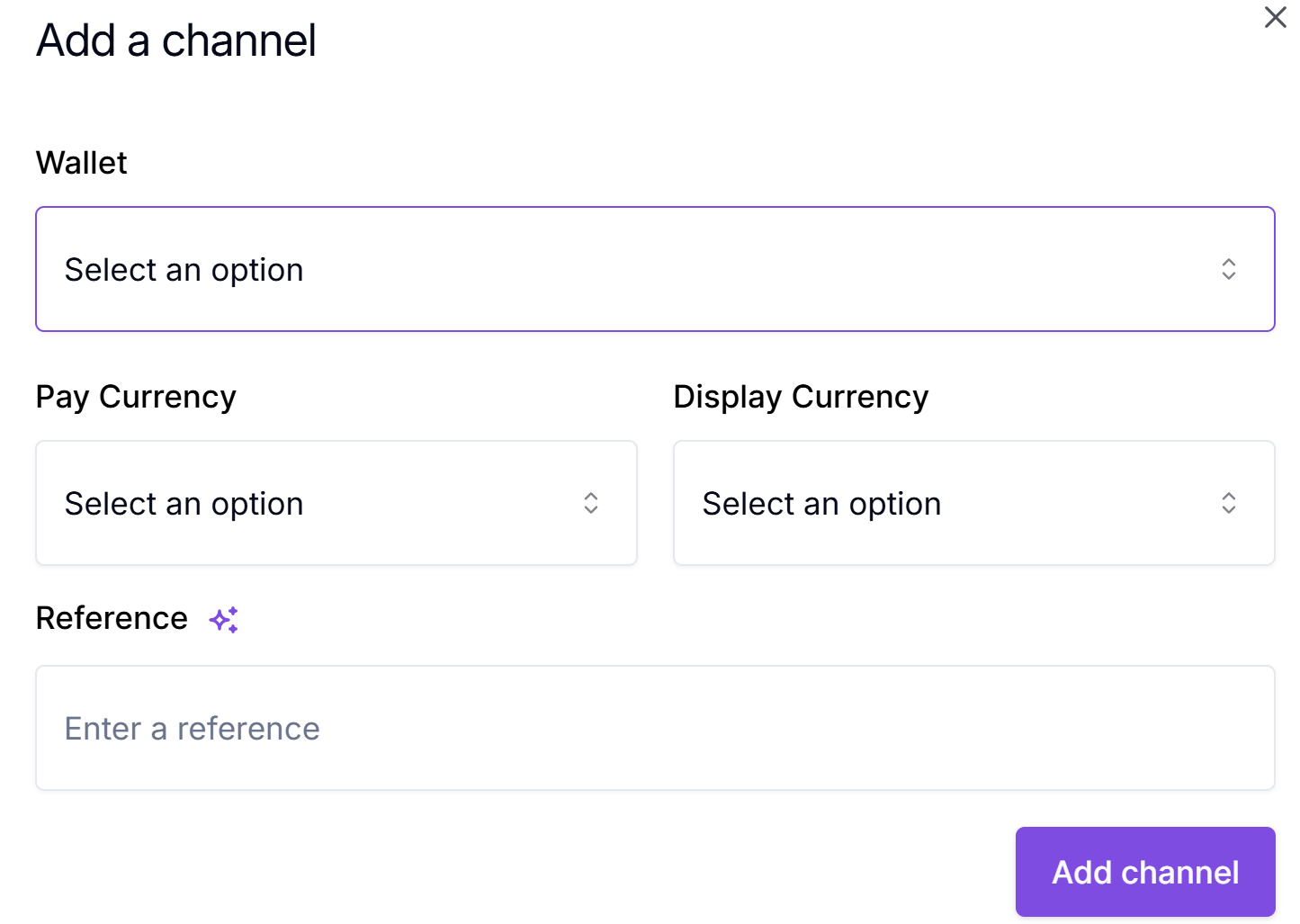
Add a channel form, to submit.
-
Click Add channel. The new channel appears in the list with status
OPEN, ready to accept inbound payments.
Channels are permanentOnce added, none of the channel's fields can be edited and the channel cannot be closed or deleted. Confirm the wallet, pay currency, display currency, and reference are correct before clicking Add channel.
Inspect a channel
Click any row in the list to open the channel detail panel on the right. The Overview tab shows everything BEEM holds about the channel, including the deposit addresses for every supported network.
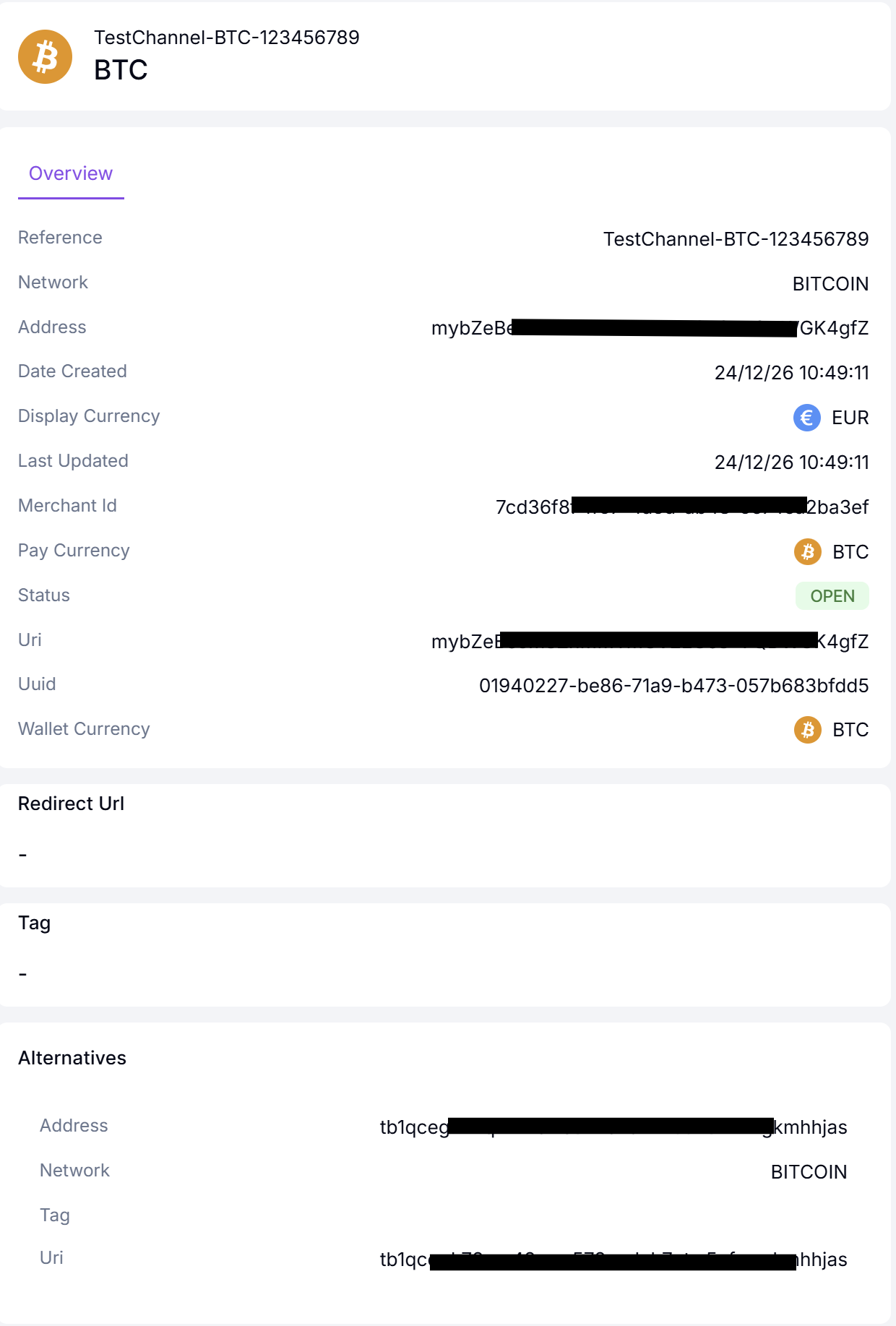
The channel detail panel. Scroll to the Alternatives section to find addresses for every other supported network.
Overview fields
| Field | What it is |
|---|---|
| Reference | The internal label you set at creation. |
| Network | The channel's primary network. |
| Address | The deposit address on the primary network. |
| Date Created | When the channel was added. |
| Display Currency | The currency shown to the customer at the point of payment. |
| Last Updated | When the channel record was last touched by the system. |
| Merchant Id | Despite the label, this is the UUID of the wallet the channel feeds — not a merchant identifier. |
| Pay Currency | The asset customers send. |
| Status | Always OPEN. |
| Uri | The URI form of the primary address. In most cases identical to the Address field; reserved for chain-specific URI schemes. |
| Uuid | The channel's unique identifier. |
| Wallet Currency | The currency funds settle in. |
| Redirect Url | Currently unused. Leave blank. |
| Tag | XRP destination tag, if the primary network is XRP. Empty for all other networks. |
Alternatives
The Alternatives section lists deposit addresses for every other supported network on the channel's pay currency. For a USDT channel, this typically includes Solana, Polygon, and Ethereum addresses alongside the primary Tron address.
Each alternative has the same shape:
| Field | What it is |
|---|---|
| Address | The deposit address on this network. |
| Network | The network identifier (SOLANA, POLYGON, ETHEREUM, and so on). |
| Tag | Destination tag, if the network requires one. |
| Uri | The URI form of the address. |
Any deposit landing on any of these addresses is converted to the wallet currency and credited to the same wallet.
Sharing the address with your customer
What you share depends on what your application offers the customer.
- Single-network flow. If you support only one network for inbound, share the address (and tag, if XRP) for that network. The detail panel's primary Address and Tag fields cover this.
- Network-selector flow. If you let the customer choose, surface a list of (network, address) pairs from the Alternatives section so the customer picks one and sees only the corresponding address.
Either way, BEEM does not host a payment page for channels — your application is responsible for the customer-facing UI.
XRP destination tagIf the chosen network is XRP, the
Tagvalue is required. Display it prominently alongside the address — without it, the deposit cannot be attributed and will not be credited.
Creating a channel via the APIThe API supports channel creation as well. This page focuses on the Portal flow because the Portal is where finance and operations teams typically work. The API reference covers the equivalent endpoint and request shape.
What's next
Updated 5 months ago