

Approvals
Sign-off rules that gate outbound payouts. Configure independent policies for Portal and API withdrawals, with optional amount tiers.
Approvals gate outbound payouts before they execute on-chain. With approvals configured, every outbound Payment Link sits at PROCESSING after creation, waiting for one or more approvers to sign off before BEEM submits it. If approval is granted, BEEM submits the on-chain transaction. If rejected, the payment terminates in CANCELLED and the wallet is never debited.
This page covers two flows: setting up your approval policy, and acting on a pending approval from the queue.
How approvals are structured
Approval policies are configured along two axes:
| Axis | Options |
|---|---|
| Initiator surface | Withdrawals made via UI (Portal-initiated payouts) and Withdrawals made via API (API-initiated payouts). Configured independently — the two surfaces can have different policies. |
| Trigger | Don't require approval / Require approval for all transactions / Require approval for transaction ranges. |
All conditions apply to all wallets and amounts are evaluated in your account's base currency (typically USD).
The three triggers on each surface:
| Option | When it applies | Approver count |
|---|---|---|
| Don't require approval | Payouts on this surface go straight through without sign-off. | — |
| Require approval for all transactions | Every payout on this surface needs sign-off, regardless of amount. | A single value — the number of approvers required for every payout. |
| Require approval for transaction ranges | Different amount tiers can require different numbers of approvers. For example: 0–100 USD = 0 approvers, 100.01–1000 USD = 1 approver, above 1000 USD = 2 approvers. | Per-tier — set independently for each amount band. A tier with 0 approvers passes through without approval. |
Configure approval preferences
Configure the policy in the Portal.
- Sign in to the Account Portal.
- Go to Approvals in the left navigation.
- Click Manage approval preferences in the top right.
- For each surface — Withdrawals made via UI and Withdrawals made via API — choose one of the three options.
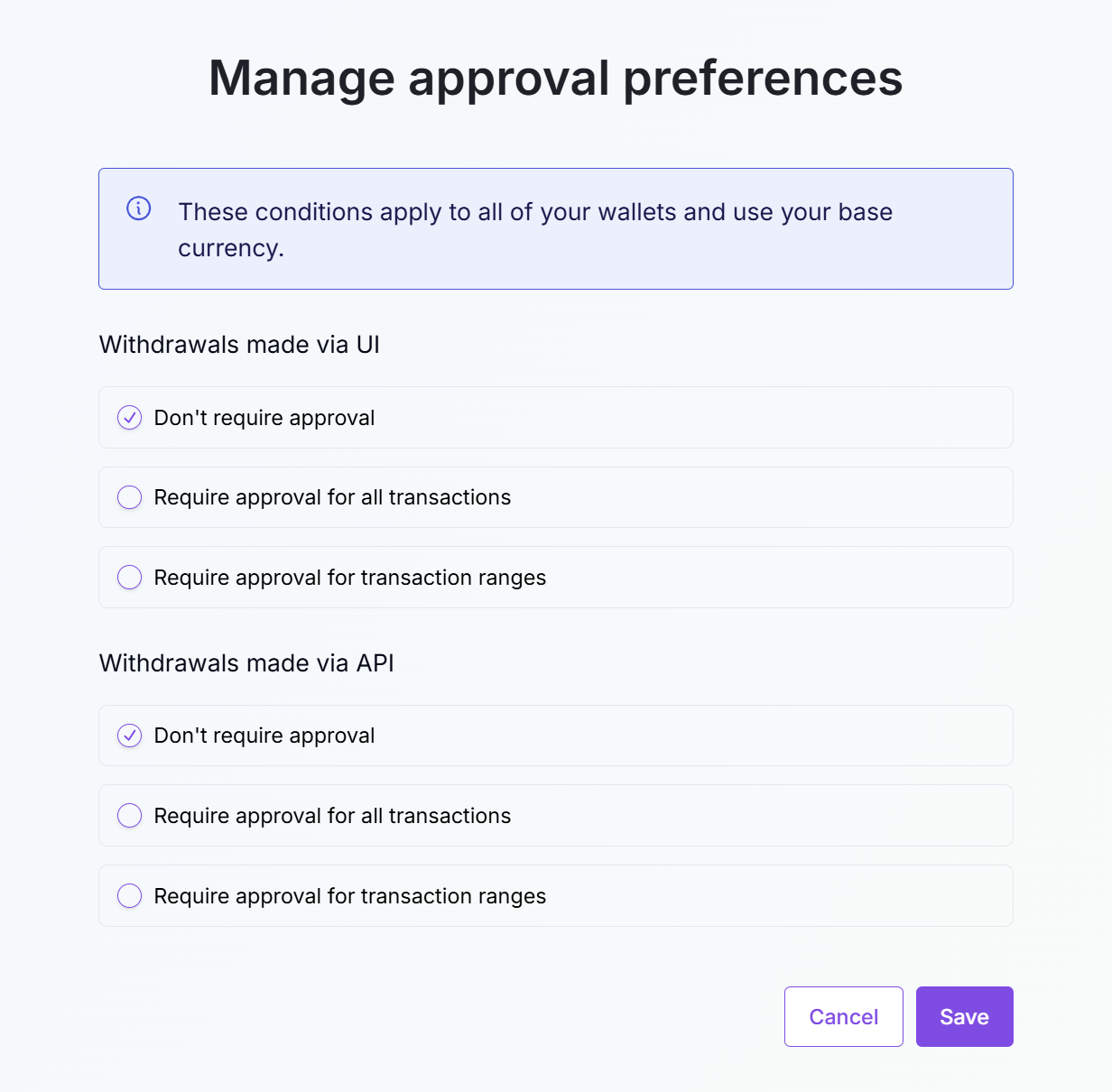
Default — neither surface requires approval. Payouts execute immediately.
When you pick Require approval for all transactions, an Approvers required dropdown appears for that surface. Set the number of approvers that must sign off on every payout.
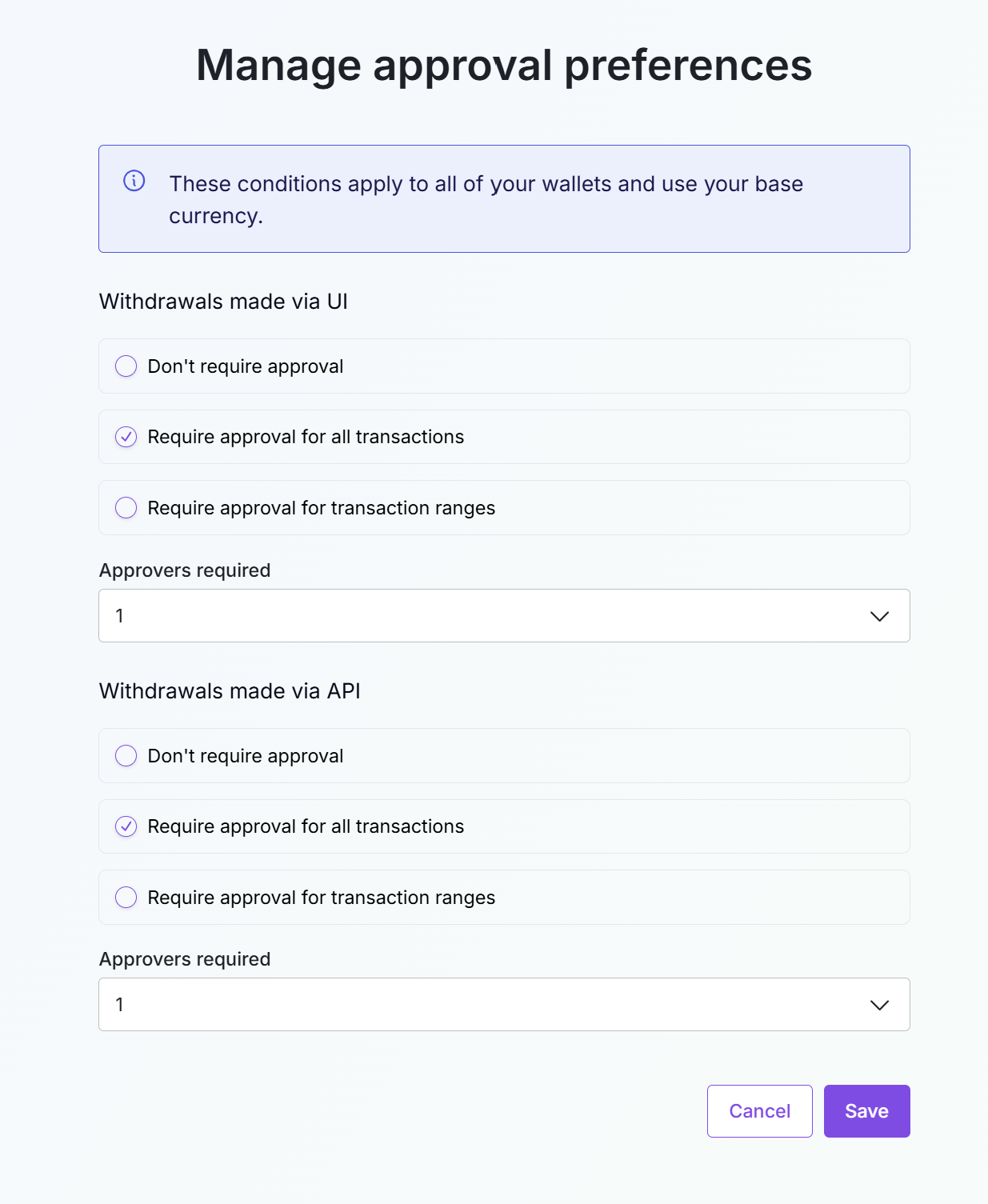
All-transactions mode. Set Approvers required for the surface.
When you pick Require approval for transaction ranges, define each tier with From, To, and Approvers required. Tiers must cover from 0 up to the largest amount you want to support — the last tier typically runs to Infinity / max. Click + to add a tier; click the trash icon to remove one.
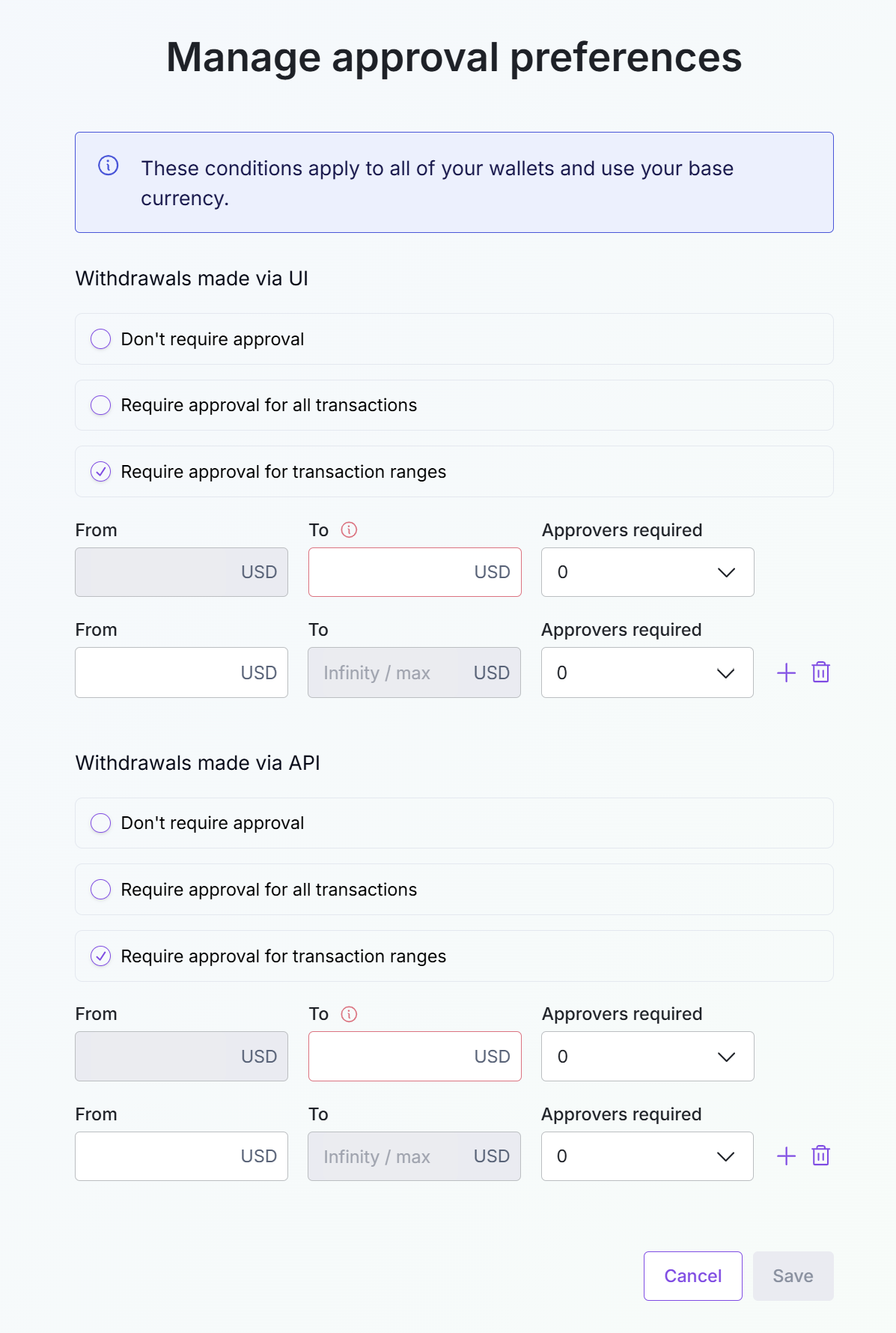
Tiered mode. Each band has its own Approvers required count — 0 means no approval needed for that band.
- Click Save.
Policy changes apply to new payouts created after Save. Already-pending approvals continue under the policy that was in force when they were created.
Pending approvals queue
The Approvals page is also the queue an approver works in. It is split into four tabs.
| Tab | Shows |
|---|---|
| Pending | Payouts currently awaiting approval. This is where approvers take action. |
| Approved | Historical record of approved payouts. |
| Rejected | Historical record of rejected payouts — these moved the payment to CANCELLED. |
| Expired | Approval requests that timed out without being acted on. |

The Pending tab. Each row is one payout awaiting approval.
Each row on the Pending tab carries:
| Column | What it shows |
|---|---|
| Reference | The payout's reference — set when the payout was created. |
| Description | An auto-generated summary of the payout (e.g. Send 20.008006 USDT to TJdzSbzU…REZ14dXu). |
| Status | PENDING while waiting for the required votes. |
| Requester | The user who initiated the payout. |
| Approvals Required | The number of approvals still needed before the payout will execute. |
| Votes | The current count of approval votes cast — click through to see who has voted. |
| Actions | Approve or Reject buttons. The Requester cannot approve their own request — for that row the Approve button is disabled, and a second user must act. |
When the required number of approvers have clicked Approve, BEEM submits the payout on-chain and the payment's status moves to PROCESSING → COMPLETE. If any approver clicks Reject, the payout terminates immediately in CANCELLED and the wallet is not debited.
Approval record lifecycle
Each payout that needs approval generates an approval record with its own state. This is separate from the payment's status field — but the payment's status changes in response to the approval outcome.
| Approval state | Meaning | Payment outcome |
|---|---|---|
| Pending | Awaiting action from approvers. | Payment status stays PROCESSING. |
| Approved | The required number of approvers signed off. | BEEM submits the on-chain transaction → status moves to COMPLETE. |
| Rejected | An approver rejected the request. | Payment terminates in CANCELLED. Wallet not debited. |
| Expired | The approval window elapsed without enough approvers acting. | Payment terminates without executing. |
What the integrator sees
For integrators building against the API, an approval gate has no separate status code on the payment object. The payment's status field stays PROCESSING throughout the approval wait — there is no AWAITING_APPROVAL to watch for. The eventual outcome is delivered via webhook on the payment:
- Approved →
status-change → PROCESSINGcontinues, thenstatus-change → COMPLETEonce the on-chain transaction confirms. - Rejected →
status-change → CANCELLED. - Expired → the payment terminates; see Payment Exceptions.
See Payment Link Webhooks for the full event payloads and sequences.
What's next
Updated 5 months ago